> For the complete documentation index, see [llms.txt](https://developers.didomi.io/llms.txt). Markdown versions of documentation pages are available by appending `.md` to page URLs; this page is available as [Markdown](https://developers.didomi.io/api-and-platform/widgets/privacy-widgets/authentication/authenticate-your-end-user.md).
# Authenticate your end-user
This documentation explains how to authenticate your end-users in the Didomi Consents API via widgets. We will cover both One-Time Password and Magic Link workflows, as well as handling authentication from your server.
[One-Time Password](#one-time-password)
[Magic Link](#magic-link)
[Server Authentication](#server-authentication)
## One-Time Password
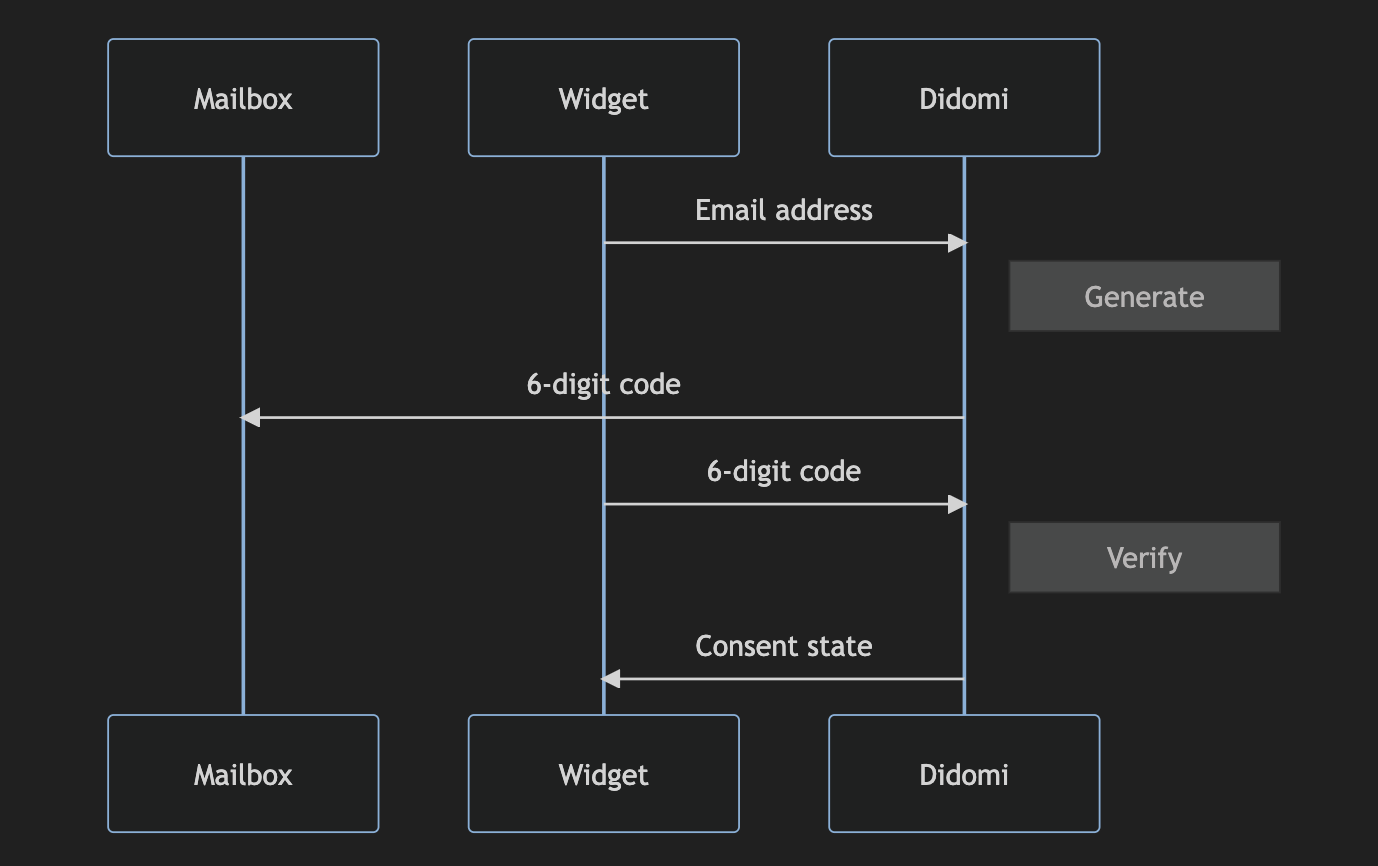
One-time password workflows using Didomi APIs require you to implement two requests:
1. Generate the code to be sent by email
2. Verify the code provided by the end-user
### Generate
To send your end-user an email with a 6-digit code\*, send a GET request to `https://api.privacy-center.org/auth/protocols/otp/generate` endpoint.
*\* Note: codes are valid for five minutes.*
| Parameter | Mandatory? | Description |
| ------------------ | ---------- | ---------------------------------------------------------------------------------------------------------- |
| `auth_provider_id` | No | Specify the authentication provider id if you are not using the default provider set in your organization. |
| `key` | Yes | Specify your public API key |
| `email` | Yes | Email prompted by the end-user in the form (also used as `organization_user_id` in `users` table) |
```json
GET https://api.privacy-center.org/auth/protocols/otp/generate?key=YOUR_API_KEY&email=END_USER_EMAIL_ADRESS
RESPONSE
{
"redirect_url": "",
"callback": "CALLBACK_TO_USE_WIDGET_AUTH_PROVIDER",
}
```
### Verify
To verify the end-user code prompted in the widget, send a POST request on `https://api.privacy-center.org/v1/auth/protocols/otp/verify` endpoint. As parameters, you need to specify the `key` and in the payload, you need to define `code` and `organization_user_id`.
| Parameter | Mandatory? | Description |
| -------------------- | ---------- | ---------------------------------------------------------------------------------------------------------- |
| `auth_provider_id` | No | Specify the authentication provider id if you are not using the default provider set in your organization. |
| `key` | Yes | Specify your public API key |
| `privacy_center_url` | No | URL of your Preference Center |
```json
POST https://api.privacy-center.org/v1/auth/protocols/otp/verify?key=YOUR_API_KEY
PAYLOAD
{
"code":"END_USER_PROMPT",
"organization_user_id" :"END_USER_EMAIL_ADDRESS"
}
```
## Magic link
To build a Magic Link workflow with Didomi APIs, you need to send a GET request on the `https://api.privacy-center.org/auth/protocols/message/callback` endpoint and specify the following parameters:
| Parameter | Mandatory? | Description |
| -------------------- | ---------- | ---------------------------------------------------------------------------------------------------------- |
| `auth_provider_id` | No | Specify the authentication provider id if you are not using the default provider set in your organization. |
| `key` | Yes | Specify your public API key |
| `privacy_center_url` | Yes | URL of your widget to build the Magic Link attached to the email sent to the end-user. |
| `channel` | No | By default `email`, channel used to send Magic Link to end-user. |
| `id` | Yes | Recipient address of end-user, email address prompted in input from a Login Modal for example. |
```json
GET https://api.privacy-center.org/auth/protocols/message/callback?auth_provider_id=AUTH_PROVIDER_ID&key=YOUR_API_KEY&privacy_center_url=URL_ATTACHED_TO_EMAIL&channel=email&id=END_USER_EMAIL_ADDRESS
RESPONSE
{
message: "An email was sent to {EMAIL_ADDRESS_SENT} successfully"
}
```
## Support multiple auth provider dynamically
Our SDK supports multiple authentication providers. To define the provider to be used, you can use the initiate endpoint and send a GET request on `https://api.privacy-center.org/v1/auth/initiate` endpoint.
| Parameter | Mandatory | Description |
| -------------------- | --------- | ------------------------------------------------------------------------------------------------------------------------ |
| `auth_provider_id` | No | Specify the authentication provider id if you are not using the default provider set in your organization. |
| `key` | Yes | Specify your public API key |
| `privacy_center_url` | Yes | URL of your Preference Center |
| `redirect` | Yes | `true` or `false`, defines if the widget has to redirect the end-user on an external page after authentication initiate. |
```json
GET https://api.privacy-center.org/auth/initiate?key=YOUR_API_KEY&privacy_center_url=PREFERENCE_CENTER_URL&redirect=false
RESPONSE
{
"redirect_url": "REDIRECT_URL",
"callback": "CALLBACK_TO_USE_WIDGET_AUTH_PROVIDER",
"protocol": "otp || message"
}
```
*To support multiple authentication providers and allow your project manager to activate authentication workflows from the Didomi Console, you first need to ensure that your frontend supports all workflows before following the initialization process to determine the authentication provider to be used for end-user authentication.*
## Server authentication
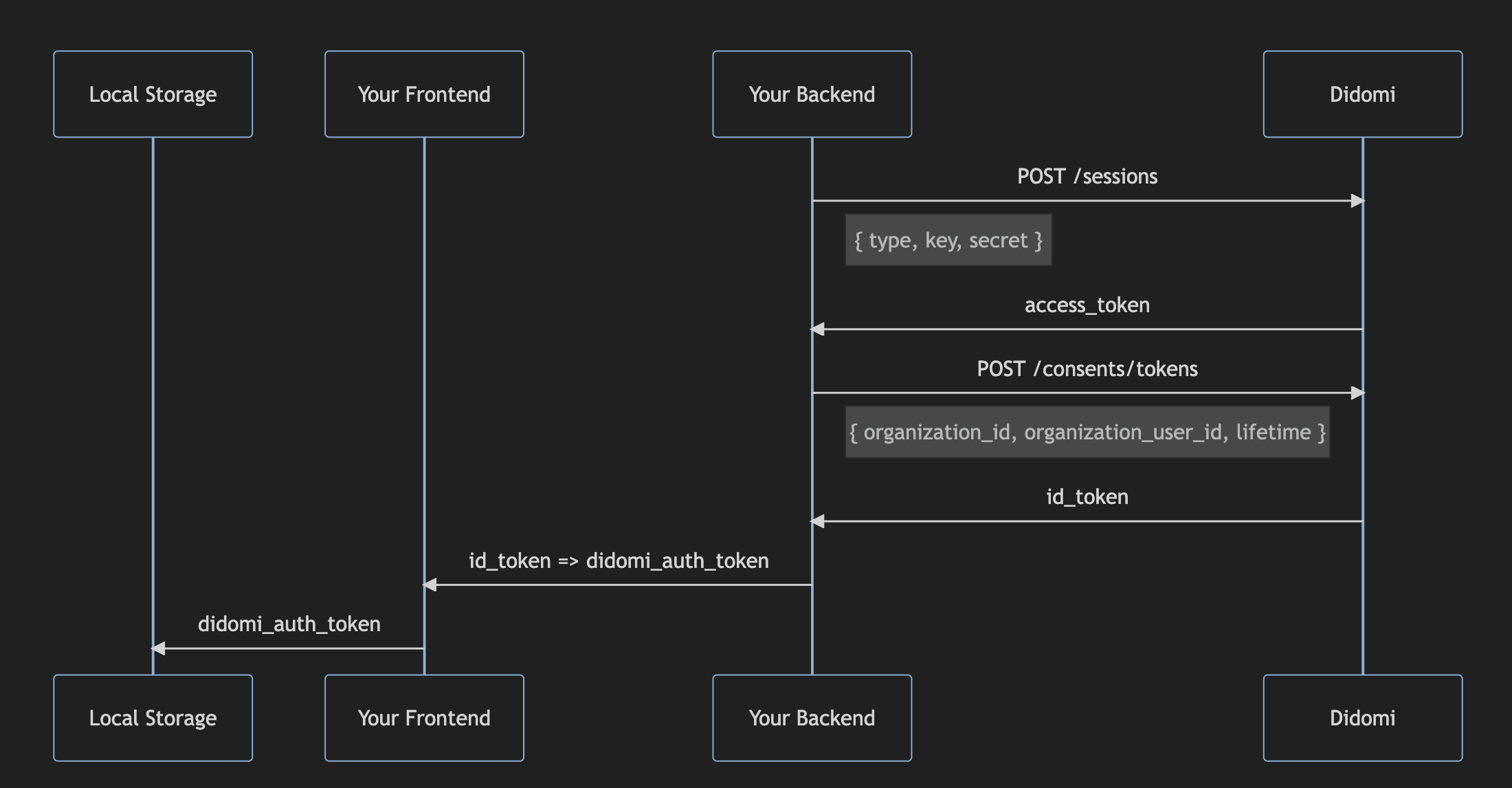
In summary, this requires authenticating your backend with Didomi in order to retrieve a consent token for user login. This token needs to be passed to the frontend and made available in Local Storage.
* [Generate a secret key in the Didomi Console](#generate-your-secret-key-in-didomi-consoled)
* [Authenticate your backend to the Didomi API](#authenticate-your-backend-to-didomi-api)
* [Generate a Didomi Token in your backend](#get-users-consents-token)
* [Make the Didomi Token available in your frontend for the embedded widget to access it](#make-the-didomi-token-available-in-your-frontend-for-the-spw-to-access-it)
#### Generate your secret key in Didomi Console
Our SDK will request Didomi APIs to retrieve previous consents, send new consents and authenticate your users in our system.
To do this, you need to create a `Private API Key`.
*If you have already generated an API Key, there is no need to generate a new one.*
***
To create a new `Private API Key`, follow these steps:
* Click on **My organization**
* Click on **Private API Key**
* Click on the **+ New private API Key** button
* A modal appears, click on the **Create** button
* Store the `key` and the `secret` in a safe place.
#### Authenticate your back-end with the Didomi API
You need to authenticate your **backend** and obtain a JSON Web Token that will be used for other API calls.
This requires you to create a session:
```json
POST https://api.didomi.io/v1/sessions
PAYLOAD
{
"type": "api-key",
"key": "YOUR_API_KEY",
"secret": "YOUR_SECRET"
}
RESPONSE
{
"access_token": "bfdjdebfjekz.."
}
```
This `access_token` will grant you access to Didomi APIs and you will be able to create a Consents Token on the user’s behalf.
#### Get Users Consents Token
We recommend obtaining a Didomi token at the moment of authentication, and sending it back to your front-end. This will allow your embeddable widget to log users in and retrieve their consents.
In your authentication controller, send a **POST** request to `/tokens` endpoint.
Payload should include:
* `organization_id` can be retrieved in Didomi Console URL (required)
* `organization_user_id` is the unique ID of the end user. This can be, for example, an ID or an email address. This is what will allow you to link consent to a user in your database, and it needs to be unique. (required)
* `lifetime` is a token lifetime in seconds (optional)
💡 *We recommend setting a lifetime that is equal to any other potential tokens you send on the front-end or any sessions. This will allow the user to be logged out from both APIs at the same time.*
```json
POST https://api.didomi.io/consents/tokens?organization_id=
PAYLOAD
{
"organization_id": "",
"organization_user_id": "",
"lifetime": 3600,
"metadata": {
...
}
}
RESPONSE
{
"organization_id": "",
"organization_user_id": "",
"lifetime": 3600,
"metadata": {
...
},
"id_token": "SKJ2..."
}
```
The API will respond with the created token in the `id_token` field.
Add this token to your authentication endpoint response so it can be consumed by your front-end.
This `id_token` is what we call a Consents Token. This token belongs to the end-user and allows them to change their consent and preferences.
#### Make the Didomi Token available in your frontend for the SPW to access it
The consents token needs to be passed to the frontend and made available so the SDK can read it.
Widgets offer two ways to read the token \*:
| Parameter | Description |
| --------------------------------- | -------------------------------------------------------------------------------------------------------------------------------------------------------------------------------------------------------------------------------------------------------------------------------- |
| `shouldReadTokenFromLocalStorage` | The widget searches in the local storage to retrieve the token and authenticate the end-user using the API. If you handle authentication yourself, use `shouldReadTokenFromLocalStorage` to read the token from local storage. You need to set the token as `didomi_auth_token`. |
| `shouldReadTokenFromURL` | The widget searches in the URL to retrieve the token and authenticate the end-user using the API. If you handle authentication by email through Didomi, use `shouldReadTokenFromURL` to read the token from the URL included in the email. |
*\* Note that our SDK will try to read the Token from the URL first and then in the Local Storage. Unless you want to force a specific authentication method, you don't need to set this property.*
***
Didomi SDK can log your user in by reading `didomi_auth_token` Local storage variable when `window.didomiConfig.user.shouldReadTokenFromLocalStorage = true`.
```json
window.DidomiWidgets.updateToken(YOUR_TOKEN)
```
---
# Agent Instructions
This documentation is published with GitBook. GitBook is the documentation platform designed so that both humans and AI agents can read, navigate, and reason over technical content effectively. Learn more at gitbook.com.
## Querying This Documentation
If you need additional information that is not directly available in this page, you can query the documentation by asking a question.
Perform an HTTP GET request on the following URL with the `ask` and `goal` query parameters:
```
GET https://developers.didomi.io/api-and-platform/widgets/privacy-widgets/authentication/authenticate-your-end-user.md?ask=&goal=
```
`ask` is the immediate question: it should be specific, self-contained, and written in natural language.
`goal` is what the user is ultimately trying to achieve, the reason they need the answer. Sharing it helps GitBook give you a better, more relevant answer. A goal is most helpful when it describes the outcome the user wants rather than restating the question. For example, with `ask=how do I create an API token`, a goal like `automate deployments from our CI pipeline` lets GitBook tailor the answer to that use case.
The response will contain a direct answer to the question and relevant excerpts and sources from the documentation.
Use this mechanism when the answer is not explicitly present in the current page, you need clarification or additional context, or you want to retrieve related documentation sections.