> For the complete documentation index, see [llms.txt](https://developers.didomi.io/llms.txt). Markdown versions of documentation pages are available by appending `.md` to page URLs; this page is available as [Markdown](https://developers.didomi.io/integrations/third-party-apps/didomi-mparticle-integration-for-your-cmp.md).
# mParticle
{% hint style="success" %}
**Available for:** Consent Management Platform (CMP)
{% endhint %}
## How It Works
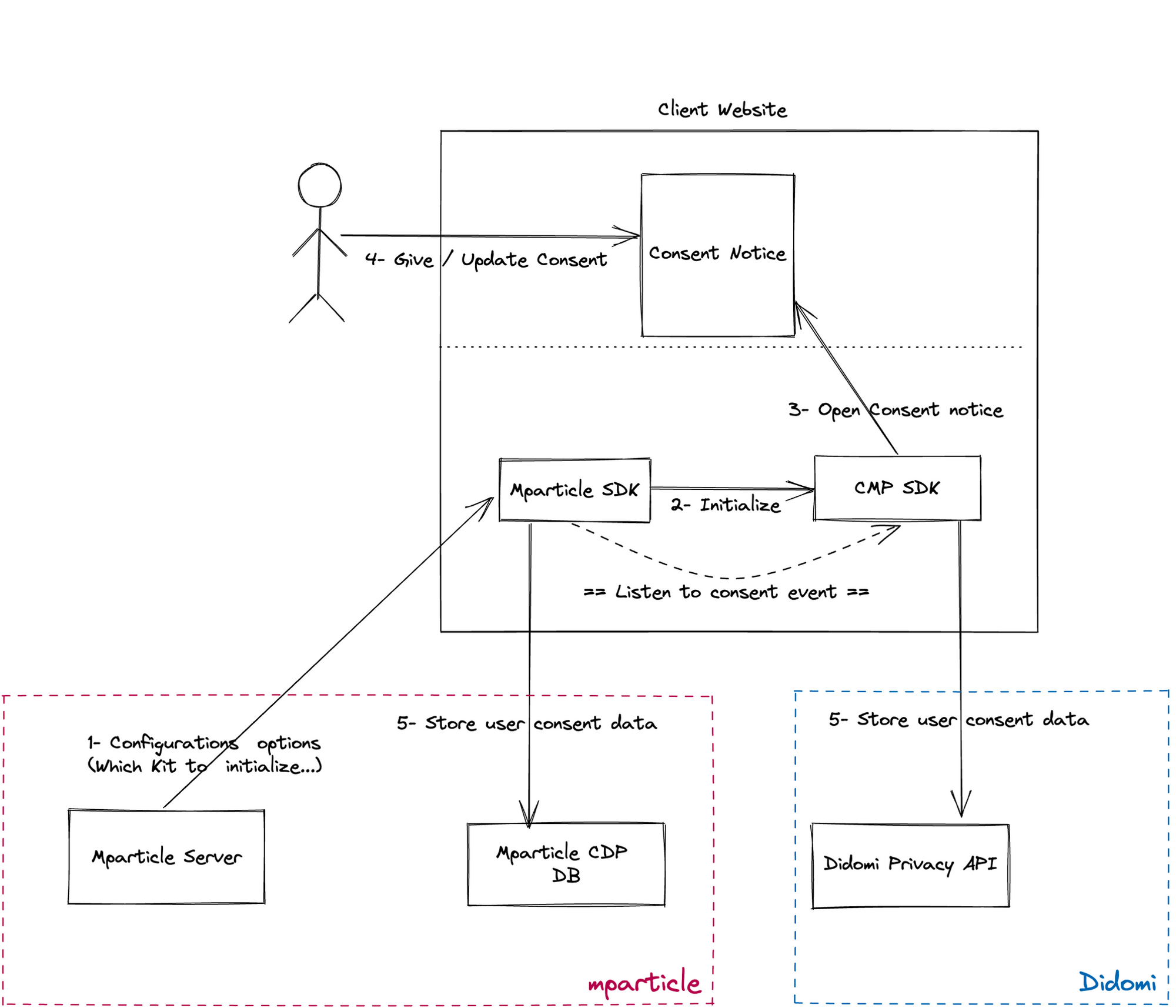
Thanks to the Didomi-mParticle integration, you will be able to collect consent data and push it to mParticle. At the same time, user consent data will continue streaming to Didomi via the Didomi SDK.
* mParticle SDK is initialized → and will automatically initialize the Didomi SDK → the consent notice is then displayed on your website
* Once the user provides/updates their consent on the Didomi consent notice, the consent data will be streamed:
* To the Didomi server via the Didomi SDK
* To the mParticle server via the mParticle SDK
## Implementation
The Didomi-mParticle integration can be set up in 3 main steps:
### 1- Add the mParticle SDK
More documentation here:
Add the mParticle SDK right below the opening \ in your webpage’s HTML. Don’t forget to replace the API key as indicated in the script.
```json
```
### 2- Add the Didomi SDK
Insert the Didomi SDK right below the mParticle SDK. More documentation on Didomi’s Web SDK can be found in [this developer documentation](https://developers.didomi.io/cmp/web-sdk).
### 3- Enable and Configure the integration in mParticle
#### **Set up the Didomi Integration**
1. Login to your mParticle app
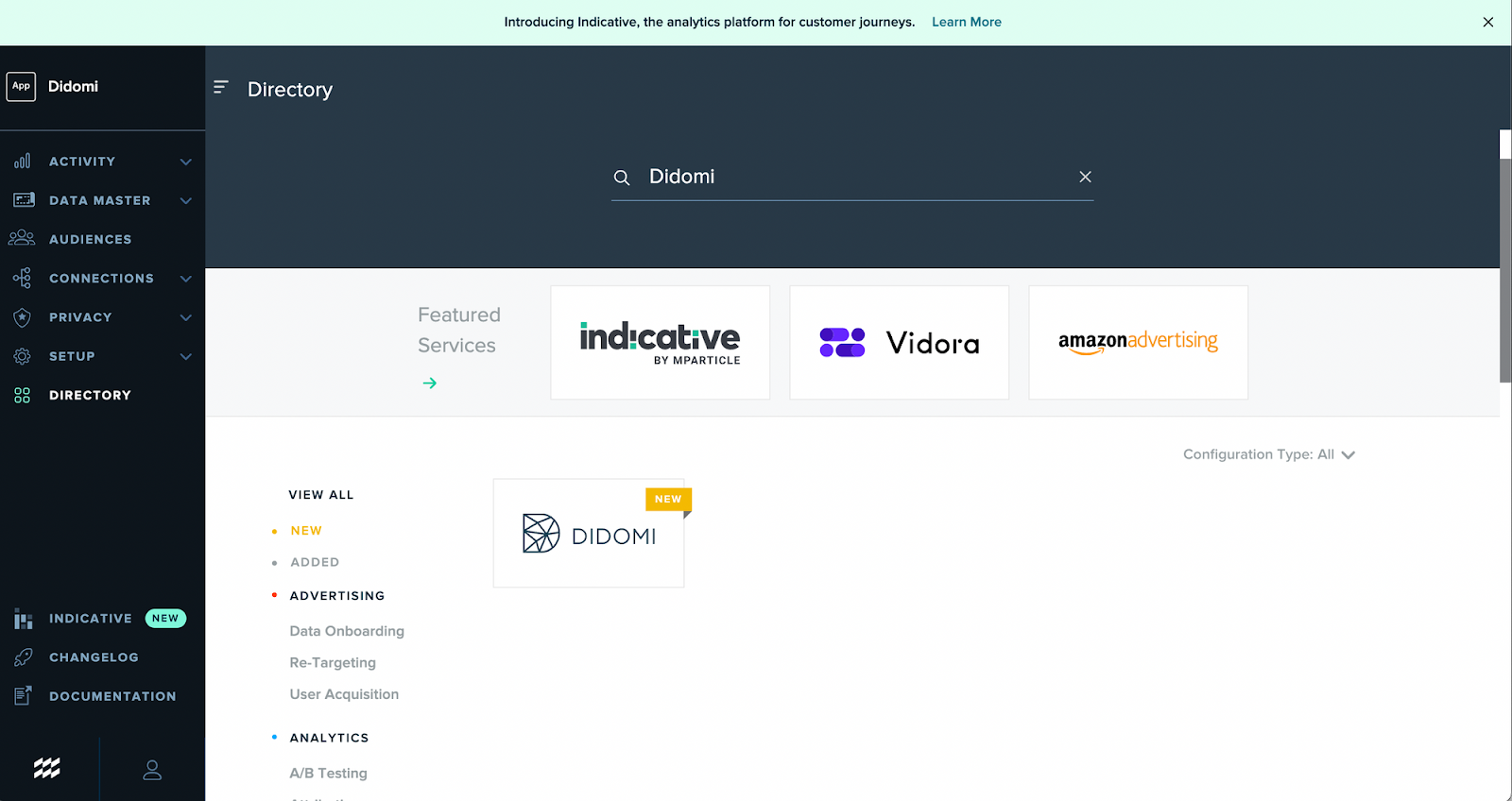
2. Navigate to Directory → Didomi\\
3. Click Setup → this will create your Event output for Didomi.
#### **Configure the Didomi-mParticle connection**
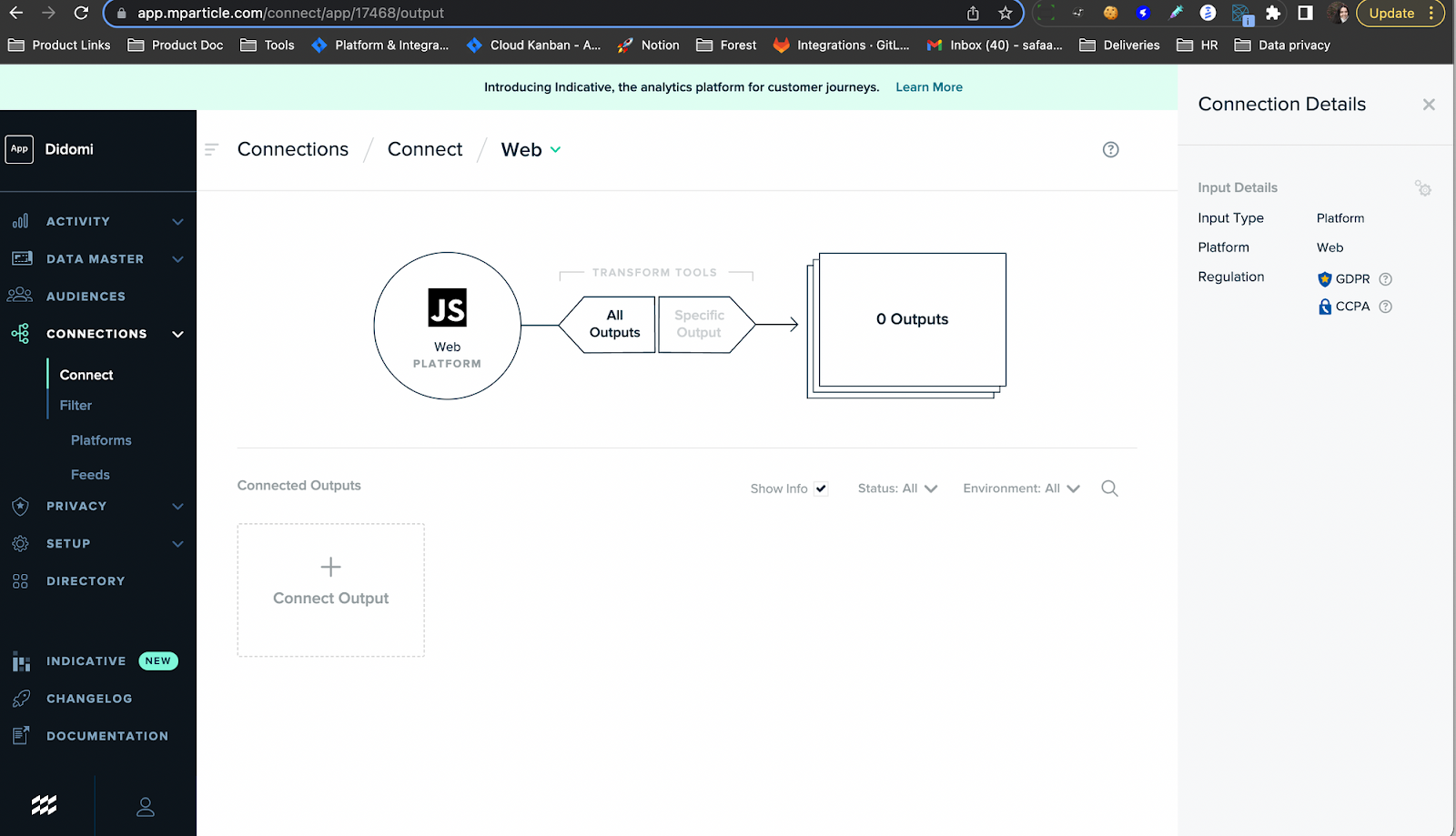
1. Navigate to Connections → connect
2. Choose your input: JS Web
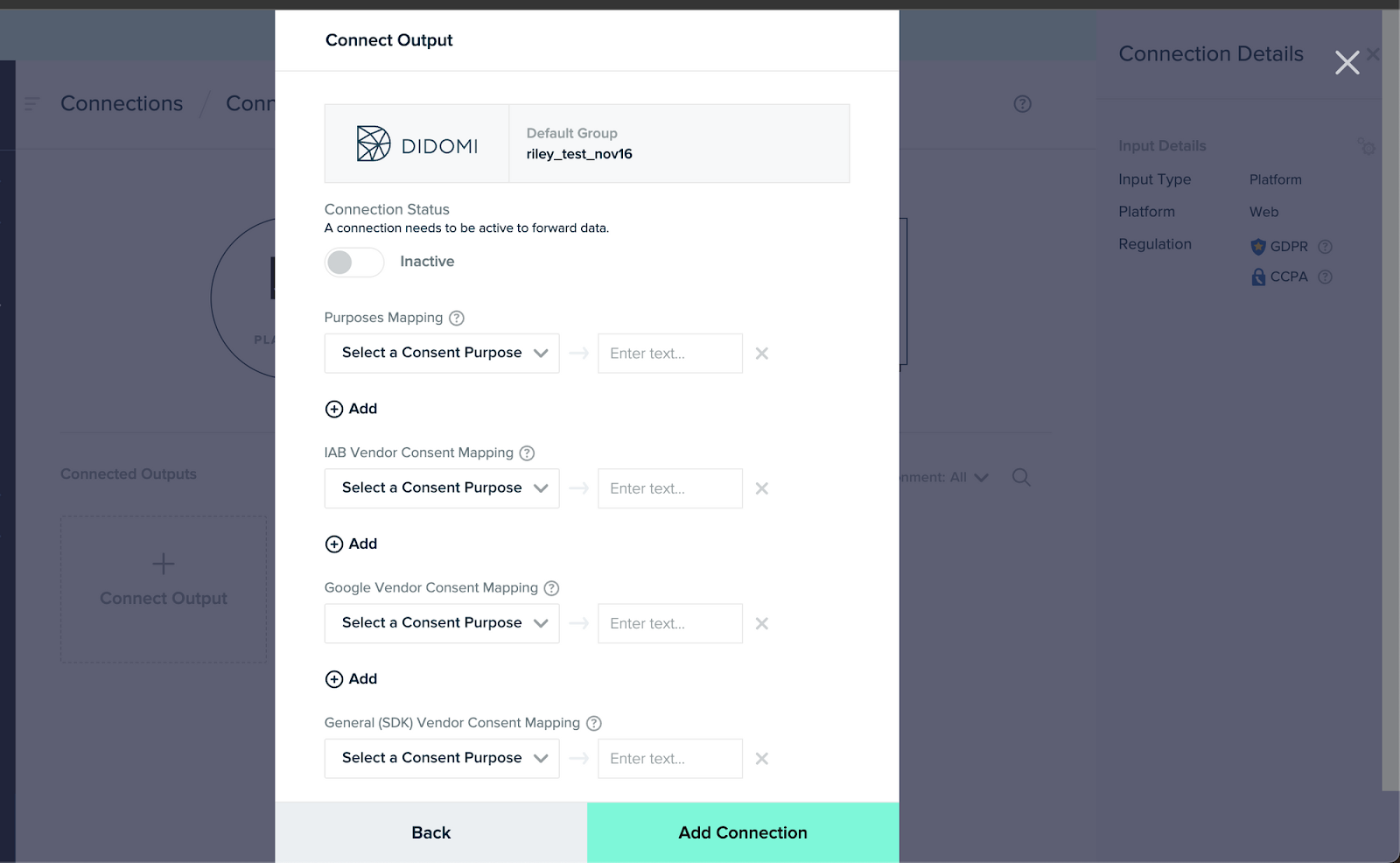
3. Click Connect Output\\
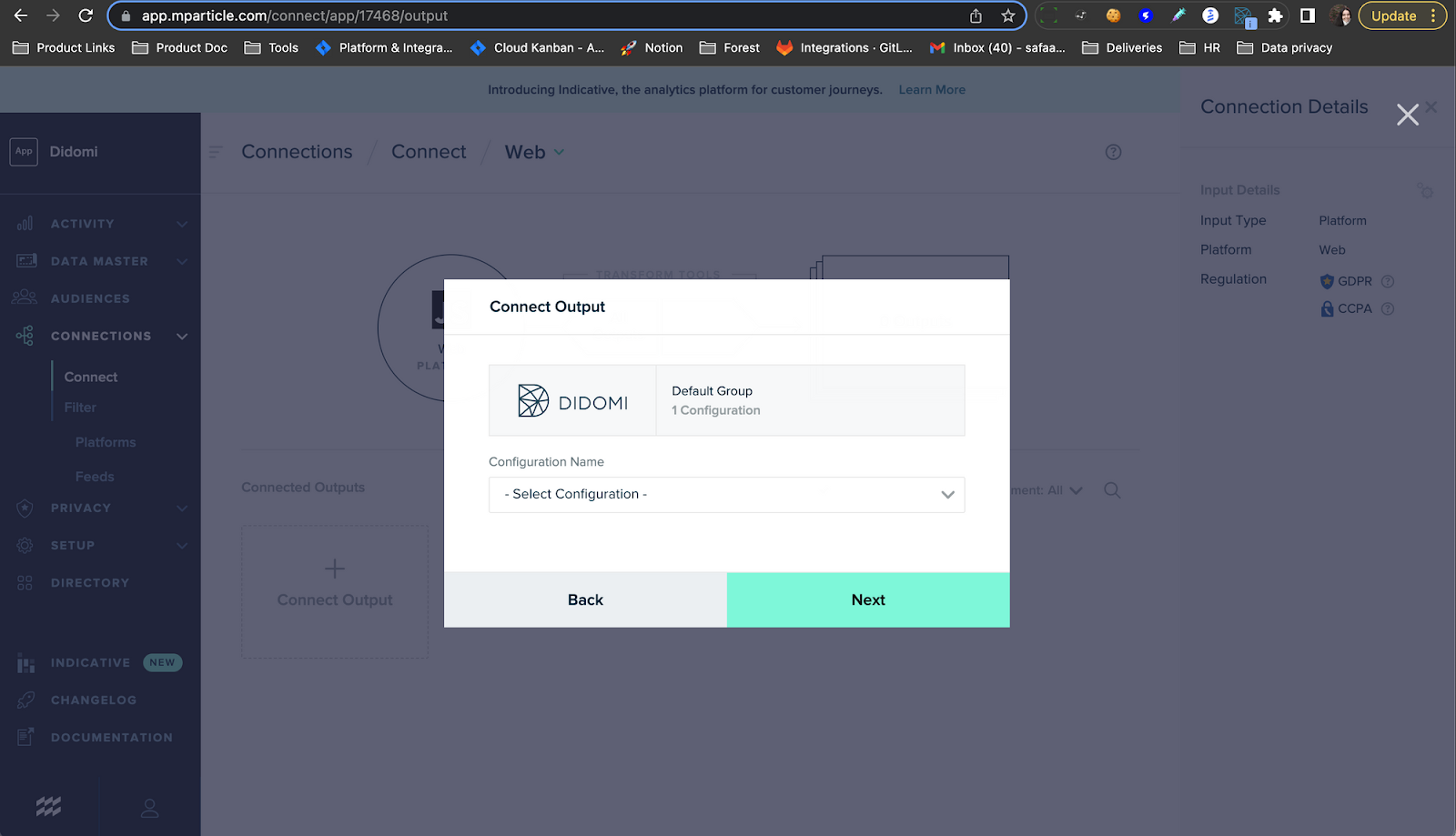
4. Choose your output: Didomi integration
5. Select a configuration from the list and click Next:\\
6. Connect Didomi-mParticle data transfer: select the mParticle purposes created earlier and map them to their corresponding Didomi purposes. Didomi purposes will be referenced thanks to the **purpose SDK ID** (from the Didomi console)
7. Remove mapping for the other types of data (vendors)
8. Click “Add connection”
---
# Agent Instructions
This documentation is published with GitBook. GitBook is the documentation platform designed so that both humans and AI agents can read, navigate, and reason over technical content effectively. Learn more at gitbook.com.
## Querying This Documentation
If you need additional information that is not directly available in this page, you can query the documentation by asking a question.
Perform an HTTP GET request on the following URL with the `ask` and `goal` query parameters:
```
GET https://developers.didomi.io/integrations/third-party-apps/didomi-mparticle-integration-for-your-cmp.md?ask=&goal=
```
`ask` is the immediate question: it should be specific, self-contained, and written in natural language.
`goal` is what the user is ultimately trying to achieve, the reason they need the answer. Sharing it helps GitBook give you a better, more relevant answer. A goal is most helpful when it describes the outcome the user wants rather than restating the question. For example, with `ask=how do I create an API token`, a goal like `automate deployments from our CI pipeline` lets GitBook tailor the answer to that use case.
The response will contain a direct answer to the question and relevant excerpts and sources from the documentation.
Use this mechanism when the answer is not explicitly present in the current page, you need clarification or additional context, or you want to retrieve related documentation sections.