> For the complete documentation index, see [llms.txt](https://developers.didomi.io/llms.txt). Markdown versions of documentation pages are available by appending `.md` to page URLs; this page is available as [Markdown](https://developers.didomi.io/api-and-platform/data-manager/configuration-tree.md).
# Configuration Tree
The **Configuration Tree** is the core of the **Preference Management Platform (PMP)**.
The PMP allows you to collect your users' preferences regarding communications, motivations, interests or any marketing use cases.
The PMP is based on a unique **Configuration Tree** on which you can add purposes and preferences. You also have the possibility to customize your widget.
Didomi's PMP empowers the collect of your users' preferences. You can then use these [preferences](/api-and-platform/data-manager/preferences-library.md) to establish your marketing strategies. The PMP allows you to centralize your users' preferences, which you can also integrate with your CRM and marketing automation tools.
Before we deep dive into what you can actually do with our API, let's walk you through the main concepts of the Preference Management Platform.
First of all, we will define the main concepts of Preference Management Platform product [(1)](#meanings). Secondly, we will detail the relationship between entities created in your Data Manager or in your Preference Library and the selected entities you add within your Configuration Tree in order to be used in your widgets [(2)](#entities-vs-selected-entities). Next, we will connect the dots between user consent collected in your widgets or through our API and the Configuration Tree [(3)](#how-is-the-user-consent-linked-to-my-configuration-tree). Then, we will provide recommendations on how to read the preferences given by your end-users [(4)](#is-the-consent-value-of-a-parent-automatically-propagated-down-to-its-children). And finally, we will detail how you can manage this Configuration Tree ([5](#get-a-configuration-tree) & [6](#edit-your-configuration-tree)).
* [Concepts](#lexicon)
* [Entities VS Selected entities](#entities-vs-selected-entities)
* [Link between user consent and the Configuration Tree](#how-is-the-user-consent-linked-to-my-configuration-tree)
* [Is the consent value of a parent automatically propagated down to its children?](#is-the-consent-value-of-a-parent-automatically-propagated-down-to-its-children)
* [Get a Configuration Tree](#get-a-configuration-tree)
* [Edit your Configuration Tree](#edit-your-configuration-tree)
* [One-click consent](#consent-propagation)
* [Processing Rules](#processing-rules)
* [Combining one-click consent and processing rules](#combining-one-click-consent-and-processing-rules)
## Concepts
#### Widgets
A **widget** is an end-user facing form used to collect preferences.
A widget is based on the unique **Configuration Tree** defined at the organization level. It exposes end-users to a part or to all the **purposes** and **preferences** defined in the Configuration Tree.
For each widget, you can customize the color **theme**, **shapes** and **content to fit your business and design needs**.
#### Configuration Tree
Preference Management Platform is based on a unique configuration: the **Configuration Tree**. This is the data model used to guarantee the consistency of your data at all times, and on several Widgets.
The configuration is built on 2 types of entities: **purposes** and **preferences** to ensure GDPR compliance. The purposes describe *WHY* a company/organization collects data and preferences allow a more granular choice to be offered to the user for a given purpose.
Purposes that can be added into your Configuration Tree come from your Data Manager. There can be **several preferences per purpose** and **preferences can be nested within other preferences**.
#### Purpose
A Purpose is *WHY* a company/organization processes a personal data.
Personal data a company/organization may process depends on **the legal reason for processing a personal** and **the intended use**.
When a company obtains its clients’ personal data, it should explain in clear and plain language
* why it needs the data,
* how it will be using it,
* and how long it intends to keep it.
The processing should be tailored in a way that respects the key data protection principles.
#### Preference
A Preference is an opportunity to collect information about user's intentions, motivations and interests.
Each preference can be added to one or multiple purpose(s) to offer a more granular choice to the user.
Preferences should match with different marketing use cases. Some examples:
* Topic and content choices
* Frequency options
* Custom customer data questions
* Privacy policies, programmes and certifications
* Access to privacy rights information
#### Value
A Value is a choice offered within a question (preference).
Each preference has one or several choices (**values**) and you can define for each if your end-users can make one or multiple choices.
#### Preferences Library
A Preferences Library is a set of re-usable preferences.
Each preference created in Preferences Library can be used several times allowing a more granular choice to be offered to the user for given purposes.
A collection of preferences facilitate analysis of user's choices made on your Widgets.
## Entities VS Selected entities

#### Purposes and Preferences
Purposes and Preferences can be inserted in your configuration tree. When you add one of those entities in your tree, we will create what we call a **selected entity**. It is a **reference** of the original entity which will allow you to have unique IDs as well as keep the order of your entity in the tree. All other information are not duplicated which means that the content (name and description) of a selected entity is always coming from its original entity. It allows you to easily change a content for all your entities in one place.
#### Values
Values work differently since they are always linked to a preference. Which means we don’t create a selected entity for values as they are unable to work independently from a preference. You can compare them to questions and answers, you will always need to know the question for an answer to make sense. Therefore, the uniqueness is based on the combination of the parent ID (selected preference) and the ID of the value.
## How is the user consent linked to my configuration tree?
First of all, let’s understand what can be stored in a consent and how is it structured. We can collect consents for **purposes** which are stored as a **boolean value** and for **preferences** which can contain **multiple values**.
Since original entities can be reusable multiple times in the configuration tree, the IDs we are interested in here are the IDs of the selected purposes as well as the selected preferences values.
#### Use case of Marketing communications
I want to ask my customer **how do they want to be contacted** for **marketing communication.** I also want to know **how frequently** for SMS and Email.
First, I create my purpose, preferences and values. Once they are in my library, I will assemble my configuration tree. The result should look as below.
.svg?alt=media)
You can see here that for each purpose and preference, I have a unique ID as well as IDs for each values of a preference. This is the ones we will use in the consent.
A widget showing my configuration tree has been created and deployed, I want my users to start giving consents.
A customer logs in and decides to get notified for **marketing communication** by **SMS quarterly** as well as by **Push notification**.

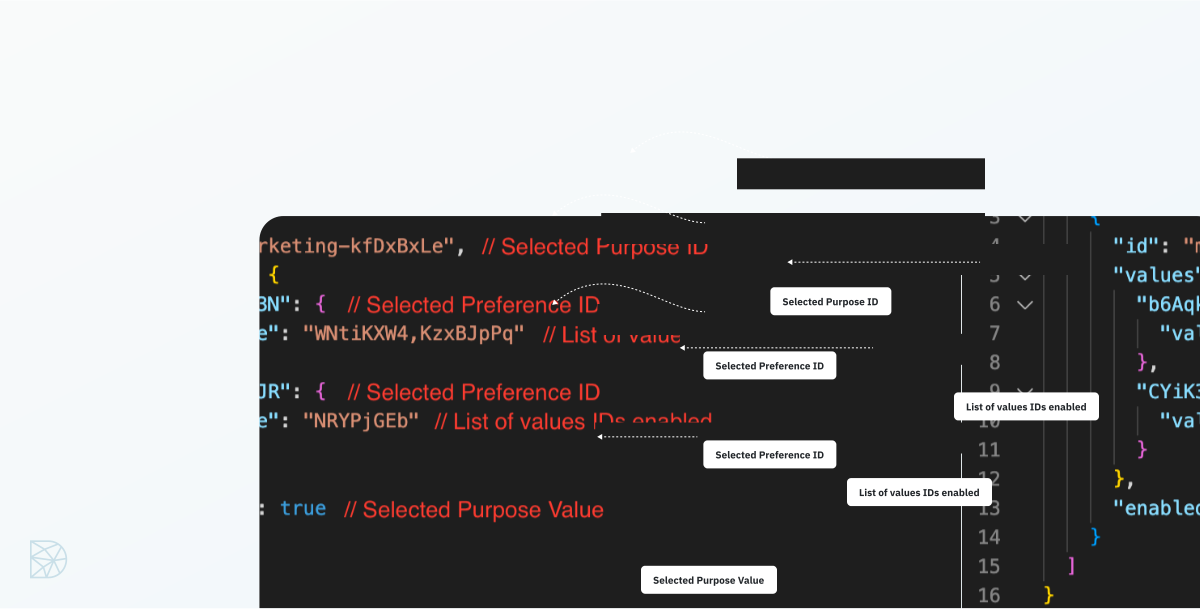
The consent information contains the IDs of the selected purposes with their boolean values as well as, for each purpose, a flat structure of the selected preferences with at least one values enabled and the corresponding values IDs enabled for this preference.
Here we retrieve the information that: I have a consent for the purpose **marketing communication** (`marketing-kfDxBxLe`).
**For that purpose**, I have a consent for the **preference communication channels** (`b6Aqki3N`) **SMS** (`WNtiKXW4`) and **Push notification** (`KzxBJpPq`) and finally a consent for the **Frequency linked to the SMS channel** (`CYiK38JR`) **for quarterly communication** (`NRYPjGEb`).
**To avoid a complex object structure, the consent is flat for preferences. You will need your configuration tree to retrieve the correct nesting.**
*As mentioned above, a value cannot live independently from a preference, as an answer cannot live without a question. Therefore, please keep in mind that a value ID is not unique in the Configuration Tree and a valid consent is the addition of a selected preference and a value associated to it.*
For more information regarding Consents and Preferences, please check our dedicated [documentation](https://developers.didomi.io/api/consents/events).
## Is the consent value of a parent automatically propagated down to its children?
By default, no. Each value is independent. If a purpose is disabled, the API returns the values of its children if they are enabled in the consent. It is up to you to decide how to use the different consent values in your integrations and condition on multiple consent values.
However, you can enable **one-click consent** on specific purposes to automatically update multi-choice preference values when users accept or reject the purpose. See the [One-click consent](#consent-propagation) section for more details.
#### Only the most nested preference value is selected
Let’s take the Marketing communication use case again. This screenshot could be an example of a Preference Center.
In a Single purpose widget embedded on your website, you could ask the following question in this awful way: “How often do you want to receive SMS about our Marketing communications ?”.
Here, we can reasonably say that you informed enough your user about what he is going to consent to. If the user has not selected values of the parent preferences and has selected one **Frequency** preference’s values, you can safely consider your user has consented to receive SMS of your Marketing communications.

#### A preference value is selected but consent is negative
In this example, the end-user could have made choices on some of your Single purpose widget. In these widgets, he has answer positively to receive **SMS** every **week** and even **Push notifications**.
In his Preference Center or even in another Single purpose widget, your end-user has unfortunately said “no” to **Marketing communications**.
We recommend you to use the **No** as an answer for all children even if they have been selected “positively”. Here, even if the end-user aims to receive **SMS** every **week**, he does not want to receive **Marketing Communication**.

## **Get a Configuration Tree**
To retrieve data of your Configuration Tree, send a **GET** request on `/config-trees`.
```json
GET https://api.didomi.io/config-trees?organization_id=YOUR_ORG_ID
[
{
"id": "String",
"created_at": "Date",
"updated_at": "Date",
"organization_id": "String",
"selected_purposes": [
{
"id": "string",
"created_at": "Date",
"updated_at": "Date",
"purpose": {
"id": "String",
"organization_id": "String",
"description": {},
"details": {}
},
"purpose_id": "String",
"configuration_tree_id": "String",
"order": 0,
"selected_preferences": [
{
"id": "String",
"created_at": "Date",
"updated_at": "Date",
"selected_preferences": [
{
"id": "String",
"created_at": "Date",
"updated_at": "Date",
"selected_preferences": [
{}
],
"parent_id": "String",
"preference": {
"id": "String",
"created_at": "Date",
"updated_at": "Date",
"name": {
"en": "String"
},
"description": {
"en": "String"
},
"organization_id": "String",
"type": "single",
"values": [
{
"id": "String",
"created_at": "Date",
"updated_at": "Date",
"name": {
"en": "String"
},
}
]
},
"parent_selected_purpose_id": "String",
"parent_preference_value_id": "String",
"order": 0,
"configuration_tree_id": "String"
}
],
"parent_id": "String",
"preference": {
"id": "String",
"created_at": "Date",
"updated_at": "Date",
"name": {
"en": "String"
},
"description": {
"en": "String"
},
"organization_id": "String",
"type": "single",
"values": [
{
"id": "String",
"created_at": "Date",
"updated_at": "Date",
"name": {
"en": "String"
},
"selected_preferences": [
{}
]
}
]
},
"parent_selected_purpose_id": "String",
"parent_preference_value_id": "String",
"order": 0,
"configuration_tree_id": "String"
}
]
}
]
}
]
```
Optional query parameters:
* `$limit`: number of max results to return
* `$skip`: number of results to skip
* `$sort`: represents sorting options. Accepts date properties to sort (`created_at`, `updated_at`) as keys and -1 or 1 for sort direction as value.
* `$sort[created_at]=1` or `-1`
* `$sort[updated_at]=1` or `-1`
* `$with[]`: list of entity names to join, values possible : `purpose`, `preference`
* `$with[]=purpose`
* `$with[]=preference`
## Edit your Configuration Tree
### **Add a purpose into your Configuration Tree**
To add a purpose into your Configuration Tree, send a **POST** request on `/config-trees/{configuration_tree_id}/selected-purposes`.
*To retrieve purposes from you Data Manager, you can send a GET request* on [`/metadata/purposes`](https://api.didomi.io/docs/#/purposes/get_metadata_purposes).
```json
POST https://api.didomi.io/config-trees/{configuration_tree_id}/selected-purposes?organization_id=YOUR_ORG_ID
{
"purpose_id": "YOUR_PURPOSE_ID",
"order": 0
}
```
### **Add a preference into your Configuration Tree**
To add a preference into your Configuration Tree, send a **POST** request on `/config-trees/{configuration_tree_id}/selected-preferences`.
*To retrieve preferences from you Preferences Library, you can send a GET request* on [`/preferences`](/api-and-platform/data-manager/preferences-library.md).
```json
POST https://api.didomi.io/config-trees/{configuration_tree_id}/selected-preferences?organization_id=YOUR_ORG_ID
{
"preference_id": "string",
"parent_selected_purpose_id": "string",
"order": 0,
"parent_id": "string",
"parent_preference_value_id": "string"
}
```
| Element | Required | Description |
| ---------------------------- | ----------------------------------------- | ------------------------------------------------------------------------ |
| `configuration_tree_id` | Yes | `id` of the Configuration Tree |
| `organization_id` | Yes | `id` of the organization |
| `preference_id` | Yes | `id` of the preference |
| `parent_selected_purpose_id` | Yes | `id` of the SelectedPurpose the SelectedPreference belongs to. |
| `order` | Yes | Order of SelectedPurpose in Configuration Tree |
| `parent_id` | Yes, if nesting inside a preference value | `id` of the SelectedPreference the nested SelectedPreference belongs to. |
| `parent_preference_value_id` | Yes, if nested inside a preference value | `id` of the value the nested SelectedPreference belongs to. |
### **Delete a SelectedPurpose**
To delete a purpose from your Configuration Tree, send a **DELETE** request on `/config-trees/{configuration_tree_id}/selected-purposes/{id}`.
All SelectedPreferences nested inside the SelectedPurpose will be removed too.
```
DELETE https://api.didomi.io/config-trees/{configuration_tree_id}/selected-purposes/{selected_purposes_id}?organization_id=YOUR_ORG_ID
```
### **Delete a SelectedPreference**
To delete a preference from your Configuration Tree, send a **DELETE** request on `/config-trees/{configuration_tree_id}/selected-preferences/{id}`.
All SelectedPreferences nested inside the SelectedPreference will be removed too.
```
DELETE https://api.didomi.io/config-trees/{configuration_tree_id}/selected-preferences/{selected_preferences_id}?organization_id=YOUR_ORG_ID
```
### **Delete multiple SelectedPreferences**
To delete multiple preferences from your Configuration Tree, send a **DELETE** request on `/config-trees/{configuration_tree_id}/selected-preferences?id[]={id}`.
All SelectedPreferences nested inside the SelectedPreference will be removed too.
```
DELETE https://api.didomi.io/config-trees/{configuration_tree_id}/selected-preferences/?organization_id=YOUR_ORG_ID&id[]=ID
```
`id` query params have to follow array format `id[]` pattern.
## One-click consent
One-click consent is a feature that allows purposes to automatically influence multi-choice preference values when users accept or reject them. When you enable one-click consent on a purpose, user choices for that purpose automatically update all related multi-choice preferences through consent propagation.
#### How one-click consent works
When one-click consent is enabled for a purpose:
* **Accepting the purpose** automatically selects all available values for multi-choice preferences associated with that purpose
* **Rejecting the purpose** automatically deselects all values for multi-choice preferences associated with that purpose
* **Manual overrides are preserved**: If a user explicitly sets a preference value in the same request, that explicit choice takes precedence over the propagated value
* **Only multi-choice preferences are affected**: Mono-selection (single-choice) preferences are not affected by propagation
* **Propagation applies to nested preferences**: All multi-choice preferences nested under the purpose, regardless of depth, receive the propagated values
#### Benefits of one-click consent
One-click consent improves the user experience by:
* **Reducing friction**: Users don't need to manually select multiple related preferences
* **Ensuring consistency**: All related preferences are managed together
* **Maintaining transparency**: All propagated values remain visible and editable
* **Preserving user control**: Users can override any propagated value
#### Configuration
You can enable or disable one-click consent for each purpose in your Configuration Tree through:
* The Didomi Console UI (recommended for most users)
* Direct API calls to update purpose configuration
When you enable one-click consent on a purpose, the setting applies immediately to all new consent events for that purpose.
{% hint style="info" %}
One-click consent is a purpose-level setting. You configure it independently for each selected purpose in your Configuration Tree.
{% endhint %}
{% hint style="warning" %}
Enabling one-click consent on a purpose does not retroactively update existing user consents. It only applies to new consent events created after you enable the feature.
{% endhint %}
## Processing Rules
Processing rules define how the initial user status is set for purposes before an end-user makes an explicit choice. This feature allows you to pre-populate purpose values based on your organization's legal basis for processing personal data.
#### Overview
Processing rules are configured at the **Configuration Tree** level on individual selected purposes. They control the default consent state that appears to users when they first interact with your preference widgets.
Currently, the Processing Rules feature supports:
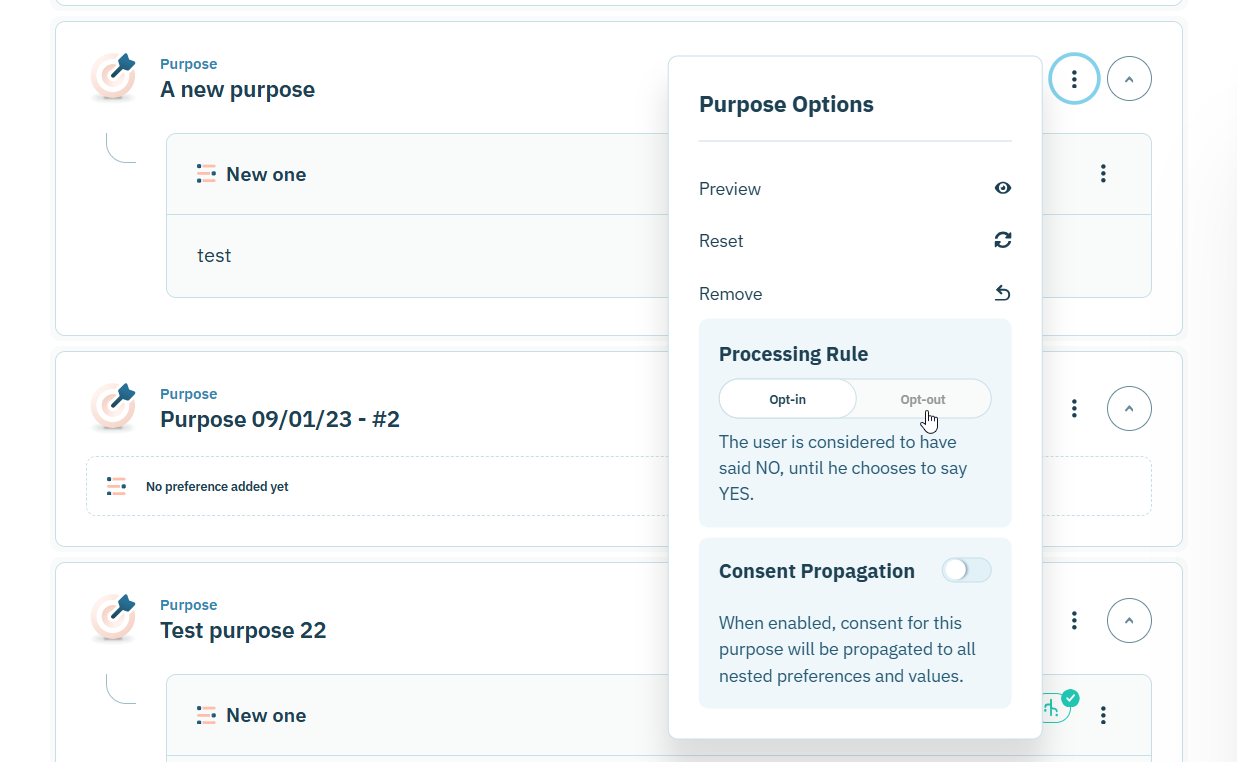
* **Opt-out**: Purpose is pre-selected (enabled by default). Users must actively opt out if they do not consent.
When no processing rule is defined, purposes default to **opt-in** behavior (disabled by default), requiring users to actively provide consent.
#### How Processing Rules Work
Processing rules only apply to users who have **not yet made an explicit choice** for a given purpose. Once a user has interacted with a preference widget and submitted their choices, processing rules no longer override their explicit consent.
**Opt-out Behavior**
When a purpose is configured with the `opt-out` processing rule:
1. The purpose appears as **enabled** (`true`) in the widget before user interaction
2. Users can still change their choice by opting out
3. After a user submits their preferences, their explicit choice is stored and respected
4. Processing rules do not override existing user consents
This behavior is particularly useful when your organization relies on legitimate interest as a legal basis for certain communications or data processing activities.
#### Use Case Example
A financial services company offers product information communications that do not require explicit consent under their legitimate interest assessment. They want to:
* Pre-select the "Product Updates" purpose as enabled by default
* Allow users to opt out if they choose
* Respect user choices once they have been explicitly made
By applying the `opt-out` processing rule to the "Product Updates" purpose, users will see this purpose enabled in the widget on their first visit, but can easily disable it if they wish.
#### Configure Processing Rules via our console
Enable the **Opt Out** rule for a purpose can be done via our console. To do so, you can simply go to the Configuration Tree page and click the dropdown menu for a specific purpose and enable the processing rule.
#### Configure Processing Rules via API
**Add a Processing Rule to a Purpose**
When creating a selected purpose, include the `processing_rules` field in your request body:
```json
POST https://api.didomi.io/config-trees/{configuration_tree_id}/selected-purposes?organization_id=YOUR_ORG_ID
{
"purpose_id": "YOUR_PURPOSE_ID",
"order": 0,
"processing_rules": ["opt-out"]
}
```
**Update Processing Rules on an Existing Purpose**
To modify processing rules for an existing selected purpose, send a **PATCH** request:
```json
PATCH https://api.didomi.io/config-trees/{configuration_tree_id}/selected-purposes/{selected_purpose_id}?organization_id=YOUR_ORG_ID
{
"processing_rules": ["opt-out"]
}
```
To remove all processing rules and revert to opt-in behavior:
```json
PATCH https://api.didomi.io/config-trees/{configuration_tree_id}/selected-purposes/{selected_purpose_id}?organization_id=YOUR_ORG_ID
{
"processing_rules": []
}
```
**Retrieve Processing Rules**
Processing rules are included when you retrieve your Configuration Tree:
```json
GET https://api.didomi.io/config-trees?organization_id=YOUR_ORG_ID
[
{
"id": "String",
"organization_id": "String",
"selected_purposes": [
{
"id": "string",
"purpose_id": "String",
"order": 0,
"processing_rules": ["opt-out"],
"purpose": {
"id": "String",
"organization_id": "String",
"description": {},
"details": {}
}
}
]
}
]
```
## Combining one-click consent and processing rules
You can enable both one-click consent and processing rules for the same purpose. When you combine these features, they work together to provide a pre-consented experience with automatic preference management.
**How they work together**
When both features are enabled for a purpose:
1. **Initial display**: The processing rule (`opt-out`) pre-selects the purpose as enabled for first-time users
2. **Automatic propagation**: One-click consent immediately propagates this enabled state to all multi-choice preference values under the purpose
3. **User control**: Users can disable the purpose (which deselects all preferences) or manually adjust individual preferences
4. **Explicit choices take precedence**: When explicit consent exists for the purpose, the processing rule is ignored. One-click consent continues to apply for future interactions.
---
# Agent Instructions
This documentation is published with GitBook. GitBook is the documentation platform designed so that both humans and AI agents can read, navigate, and reason over technical content effectively. Learn more at gitbook.com.
## Querying This Documentation
If you need additional information that is not directly available in this page, you can query the documentation by asking a question.
Perform an HTTP GET request on the following URL with the `ask` and `goal` query parameters:
```
GET https://developers.didomi.io/api-and-platform/data-manager/configuration-tree.md?ask=&goal=
```
`ask` is the immediate question: it should be specific, self-contained, and written in natural language.
`goal` is what the user is ultimately trying to achieve, the reason they need the answer. Sharing it helps GitBook give you a better, more relevant answer. A goal is most helpful when it describes the outcome the user wants rather than restating the question. For example, with `ask=how do I create an API token`, a goal like `automate deployments from our CI pipeline` lets GitBook tailor the answer to that use case.
The response will contain a direct answer to the question and relevant excerpts and sources from the documentation.
Use this mechanism when the answer is not explicitly present in the current page, you need clarification or additional context, or you want to retrieve related documentation sections.
.svg?alt=media)